
Figma Design agent
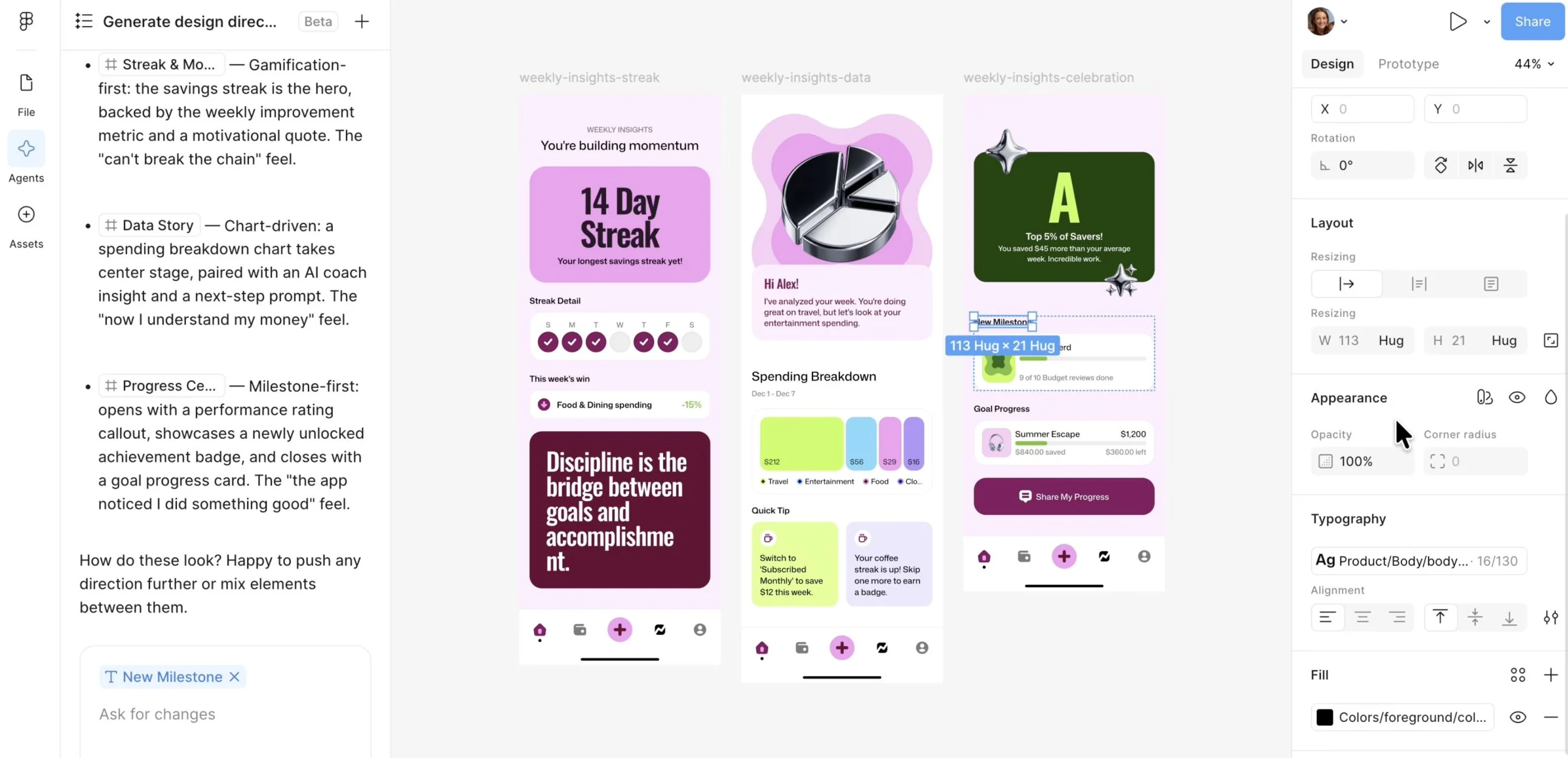
Figma’s design agent edits the real Figma file, working with actual components, variables, and layers on the canvas the team shares.
The lesson for builders
When an agent edits a shared file, a good-looking screenshot isn’t enough. Check that components are still linked, and that each person can tell which change came from which request.
What Figma Design agent can do, and where it stops#
Can do
- Generate several design directions using a connected design library.
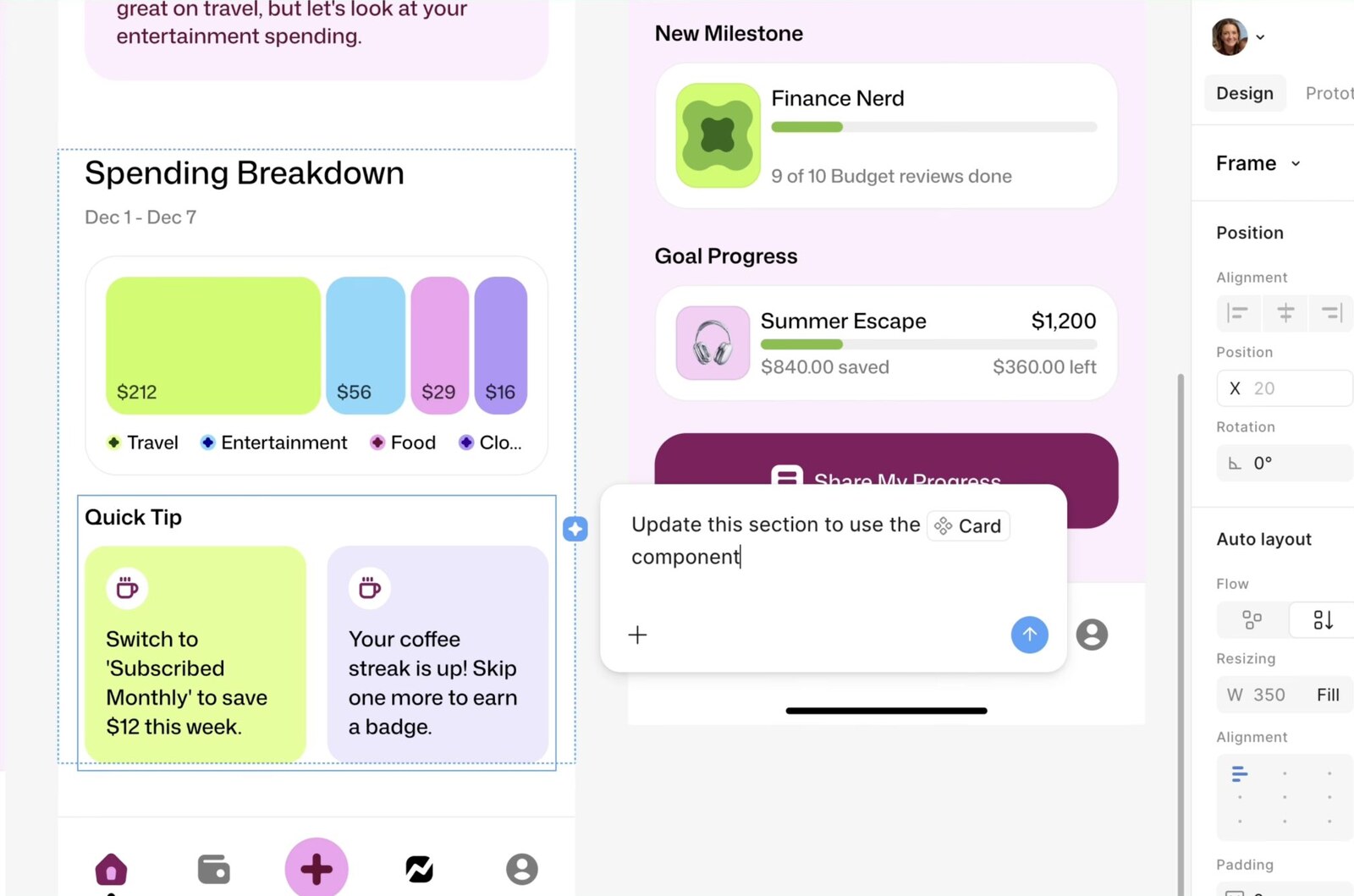
- Work on a selected area and a named component.
- Run several prompts at once on different frames, with progress indicators.
- Create reusable canvas plugins for repeated cleanup, like sorting layers or fixing spacing.
Where Figma Design agent stops
- Editing needs a Full seat and edit access. Other people can chat with the agent but not make edits.
- The agent isn’t available on mobile: Figma lists only the desktop app and web browser.
- New agent chats (from June 23, 2026) are shared by default on paid plans.
How Figma Design agent handles one request#
The same four steps for every product on this site.
Step 1: A person asks, or the agent notices
A designer selects part of the canvas and prompts the agent, naming components or a connected library. Several prompts can run at once on different frames.
Step 2: The agent prepares a change
The agent edits the real file: layers, components, and variables. The agent can also offer to apply collaborators’ feedback, or build a reusable plugin for repeated cleanup.
Step 3: The person reviews the change in the product’s own screen
The designer reviews on the canvas by selecting layers and checking their properties. Figma suggests duplicating a result before undoing, to compare.
Step 4: The product saves the change and keeps a way back
Edits change the shared design file, and editing needs a Full seat and edit access. Stop ends the current task and Undo reverts the most recent change; how Undo behaves after a collaborator’s edits isn’t documented.
Worth copying#
What Figma Design agent gets right, with the source for each.
With a library connected, the designer can @-mention specific components, variables and styles in the prompt, so the request names exactly what the agent should use.
Figma’s plugin guide says to test a generated plugin in a variety of scenarios before relying on the plugin.
Before undoing an agent’s change, Figma suggests duplicating the AI-updated version, so the designer can compare the two side by side.
Gaps#
What Figma Design agent’s public docs don’t show yet.
Figma’s two guides disagree on who can read a shared agent chat: anyone with access to the file, or only Full-seat editors.
Not documented: how Undo behaves after a collaborator’s edits, overlapping prompts, or a connector’s write to another tool.
The finding
Check that components are still linked; the agent works on desktop and web only#
Figma’s design agent doesn’t draw a picture of a screen. The agent edits the same design objects the team maintains: real components, tokens and variables on the shared canvas. The shared objects change what a review has to check.
A generated screen can look right and still be built wrong. A button can look like the library’s button while the component was detached or a raw color was copied in place of the variable. Nothing on screen shows the difference. Selecting a representative object does: is the instance still linked to the library component, and do its fills still point at the variables?
Figma’s own recording shows the useful half of the pattern. A designer selects a section and names the Card component in the request, so the request is specific about where and with what. The completion check should match the request: the intended region changed, and the resulting objects still use the Card component. A chat summary saying the cards were replaced can’t settle that.
Figma documents related habits. The plugin guide says to test a generated plugin in a variety of scenarios, and the agent guide suggests duplicating a result before using Undo, to compare.
The review also has a device limit. Figma’s FAQ says the agent is currently available only in Figma Design, from the desktop app or a web browser. Prompting, stopping and undoing the agent’s work don’t happen in Figma’s mobile app.
For builders whose agent edits shared, structured files: verify the structure, not the screenshot, and say plainly which devices the agent works on.
Sources#
- Work with the Figma agent in design fileshelp.figma.com
- Figma AI Design Agentfigma.com
- Generate plugins with the Figma agenthelp.figma.com
- Manage chat visibility for the Figma agenthelp.figma.com
Sources checked September 28, 2026.

Airtable has two AI pieces: Omni, a chat assistant that builds and changes the app, and field agents, AI columns that fill in a value for each record and can rerun when inputs change.