
Microsoft Excel agents
Microsoft has two Excel agents: Copilot inside Excel, which edits the open workbook, and Excel Agent in Copilot Chat, which creates a new workbook file.
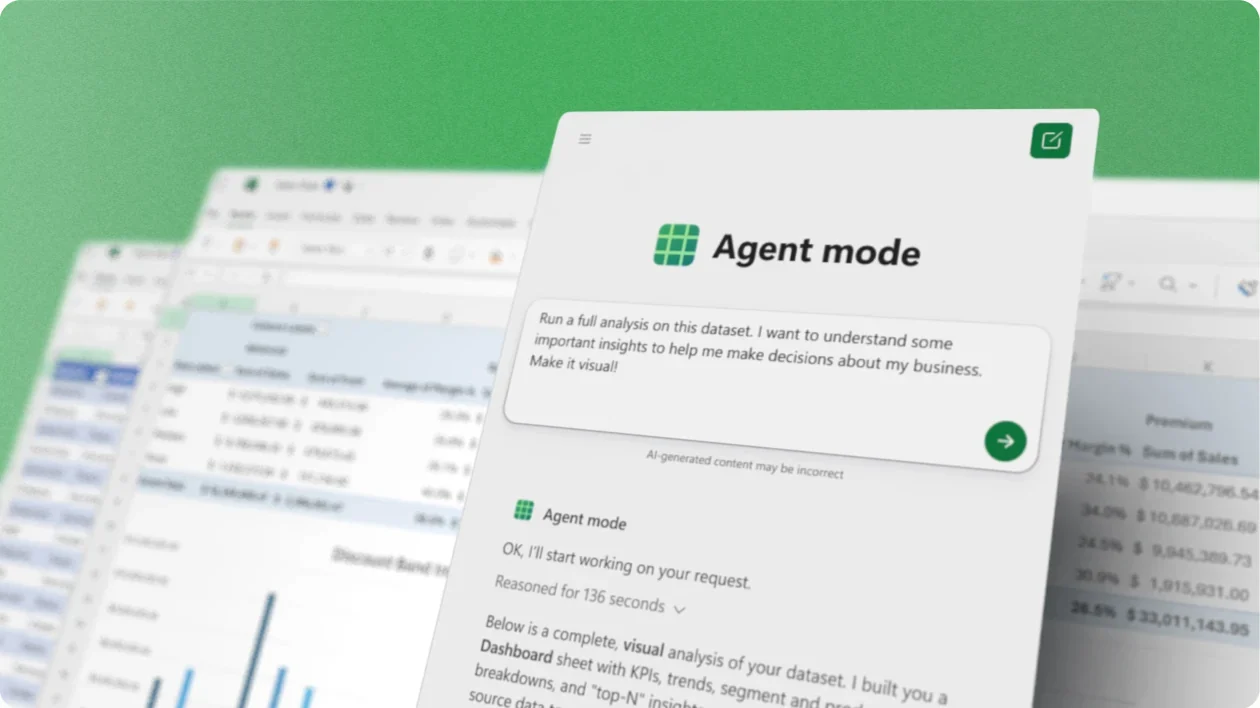
The lesson for builders
Judge a spreadsheet agent by the workbook the agent leaves behind, not the chart on screen. Change an input and check the answer updates: a typed-in number can look right and still not be a model.
What Microsoft Excel agents can do, and where it stops#
Can do
- Build with real formulas, tables, charts, and PivotTables, so the result stays editable.
- Work in three modes: edit changes the workbook directly (the default), plan shows an approach first, and chat keeps answers in the conversation.
- Create a new workbook from Copilot Chat behind a read-only preview; detailed editing happens after opening the file in Excel.
- Use other work files as sources, after the person approves each one for that chat.
Where Microsoft Excel agents stops
- Excel Agent uses only Anthropic models and needs them turned on. A Copilot button in Excel doesn’t mean Excel Agent is available.
- Copilot editing needs Automatic calculation, and saved changes are visible to everyone with access to the workbook, including coauthors.
How Microsoft Excel agents handles one request#
The same four steps for every product on this site.
Step 1: A person asks, or the agent notices
A person asks Copilot inside Excel, in edit, plan, or chat mode, or asks Excel Agent in Copilot Chat to create a new workbook.
Step 2: The agent prepares a change
In edit mode, the default, Copilot changes the workbook directly with real formulas, tables, charts, and PivotTables; plan mode shows an approach first. Excel Agent builds a new file behind a read-only preview.
Step 3: The person reviews the change in the product’s own screen
The person reviews in the workbook by selecting a formula, inspecting a chart’s fields, or changing an input to see what updates. The activity list reports steps, but the labels don’t show what was checked.
Step 4: The product saves the change and keeps a way back
Copilot’s edits go through Excel’s normal undo stack, so Ctrl+Z works. Show Changes and whole-file Version History help afterward, each with gaps, and what Stop does to edits already made isn’t documented.
Worth copying#
What Microsoft Excel agents gets right, with the source for each.
Copilot’s edits go through Excel’s normal undo stack, so Ctrl+Z reverses them like any other edit.
Plan mode shows Copilot’s approach for the person to review and confirm before Copilot changes the workbook.
Copilot asks the person to confirm which work files Copilot may use as sources, and those approvals last only for the current chat.
Gaps#
What Microsoft Excel agents’s public docs don’t show yet.
Show Changes lists cell edits but not chart, PivotTable, formatting or filter edits, so the pane isn’t a full record of what Copilot did.
Version History restores the whole file, which replaces later edits in the current version. What Stop does to edits already made isn’t documented.
The finding
A typed-in number isn’t a model#
A spreadsheet agent’s most convincing output can be its weakest evidence: a clean chart with a plausible number underneath. The number can be right for the wrong reason, or right today and wrong next month.
The check is simple: change an input and see whether the answer updates. Illustration, with made-up numbers: a sheet with March revenue of 150 and a 10% growth assumption should forecast April at 165. If the agent typed 165 into the cell, the sheet looks correct and stops being correct the moment March changes. If April is a formula, changing March to 200 moves April to 220, and changing growth to 5% moves April to 210, with no new prompt.
Copilot in Excel works with the workbook’s own tools: tables, charts, PivotTables and formulas. In a Microsoft Mechanics recording from October 2025, cell C3 holds a SUMIFS formula that points at the SalesData table with a 2023 filter. A reviewer can inspect the calculation instead of trusting an asserted total. One inspectable formula still isn’t a check of the whole workbook: the source rows, how the year is stored and what counts as a sale are separate questions.
Two more checks belong next to the input test. Microsoft says Copilot editing requires Automatic calculation, so note the calculation mode; a stale value under manual calculation can look like a broken formula. And look at each chart’s source range, because Show Changes doesn’t list chart or PivotTable edits.
For builders, the workbook is the evidence. A good spreadsheet agent leaves assumptions in labeled cells, formulas that respond to inputs, and charts that point at the intended range, so a second person can follow the work without the conversation.
![Excel with cell C3 selected, showing =SUMIFS(SalesData[Sales], SalesData[Year], 2023) above a Sales & Profit KPIs table.](/teardowns/excel-sumifs-formula.jpg)
Sources#
- Get started with Copilot in Excelsupport.microsoft.com
- Frequently asked questions about Copilot in Excelsupport.microsoft.com
- Get help with Show Changes in Excelsupport.microsoft.com
- Copilot in Excel: a tutorial for screen reader userssupport.microsoft.com
- Copilot in Excel data sourcessupport.microsoft.com
Sources checked September 28, 2026.

Figma’s design agent edits the real Figma file, working with actual components, variables, and layers on the canvas the team shares.