
Zapier Agents & AI by Zapier
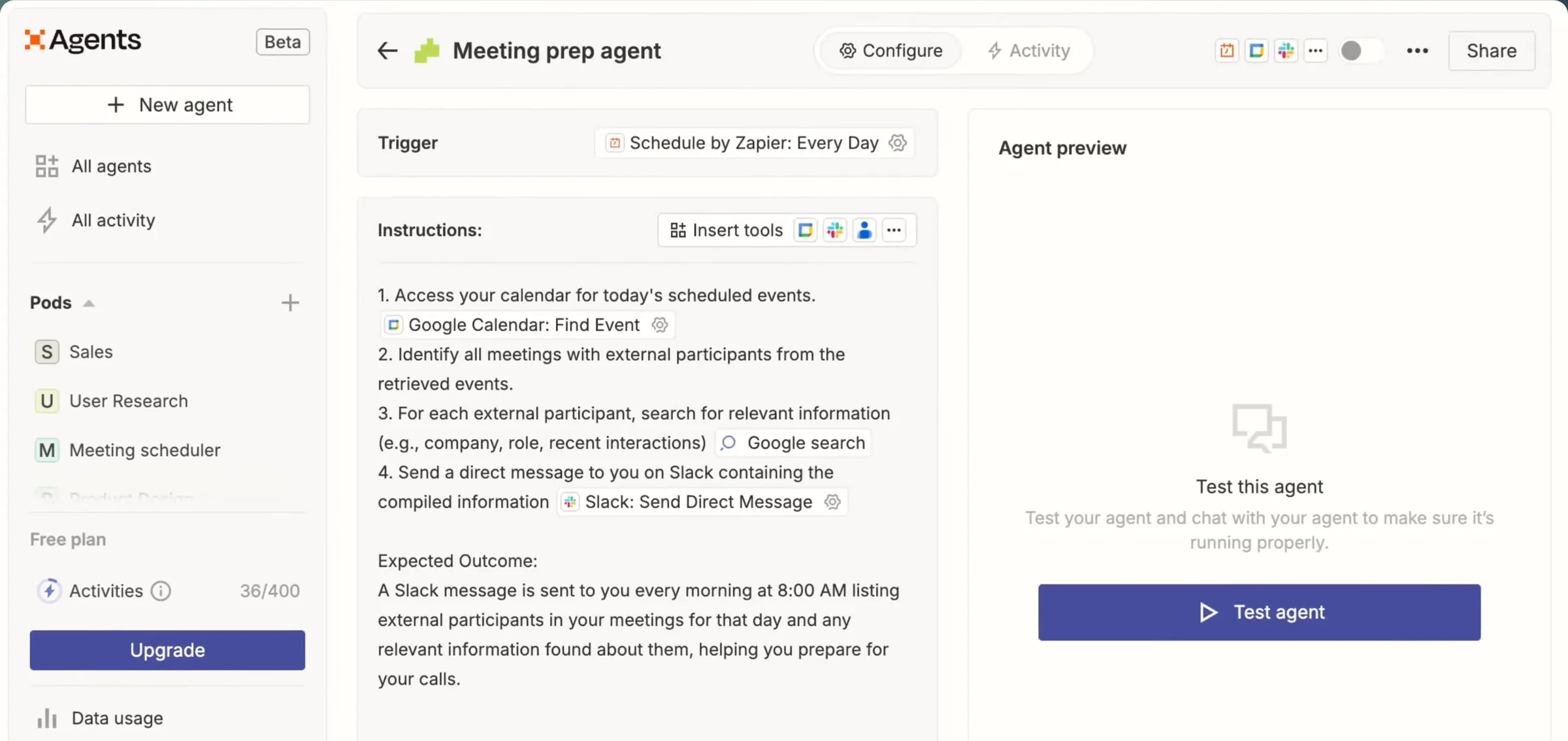
Zapier is moving standalone AI agents into ordinary Zaps, where the agent becomes a single “AI by Zapier” step inside an automation.
The lesson for builders
Where an approval sits decides what the approval protects. Put the approval before the write that matters, and never read “Success” as “approved.”
What Zapier Agents & AI by Zapier can do, and where it stops#
Can do
- Convert a standalone agent into a Zap with a trigger and one AI step.
- Pause before a specific tool runs and show the full field values, when that tool’s approval switch is on.
- Add a separate Human in the Loop step that asks a person to approve.
- Show each run’s details and tool calls in Activity.
Where Zapier Agents & AI by Zapier stops
- After migration, tool calls stay inside the one AI step instead of showing up as separate steps in the Zap.
- An approval step placed after the AI step can’t approve a write the AI step already made.
- The old agent and the new Zap can both stay switched on and do the same work twice.
How Zapier Agents & AI by Zapier handles one request#
The same four steps for every product on this site.
Step 1: A person asks, or the agent notices
A Zap’s trigger starts the work, such as a schedule or a webhook. After migration, a standalone agent becomes a Zap with a native trigger and one AI by Zapier step.
Step 2: The agent prepares a change
The AI step reasons and calls tools inside that one step. The teardown suggests having the AI step return a proposal and doing the important write in a later step.
Step 3: The person reviews the change in the product’s own screen
With a tool’s approval switch on (off by default), the run pauses before that tool and shows the full field values, and rejecting stops the run. A separate Request Approval step can also wait for a person.
Step 4: The product saves the change and keeps a way back
Approved tools run, and the Zap continues. Rollback across connected apps isn’t documented, and deleting a standalone agent deletes the agent’s activity.
Worth copying#
What Zapier Agents & AI by Zapier gets right, with the source for each.
The per-tool approval switch on an AI by Zapier step pauses the run before that tool, whatever the prompt says, and shows the full field values. Rejecting stops the run. The switch is off by default.
Zapier’s connection errors name the cause, such as an expired or revoked connection versus an account missing permission, so the person knows which fix applies.
Gaps#
What Zapier Agents & AI by Zapier’s public docs don’t show yet.
Deleting a standalone agent deletes all of the agent’s activity, so cleaning up old agents can remove the record of what the agents did.
Not documented: whether a retry after a lost response repeats a write. Reconnecting an app restores the route, not proof that repeating the work is safe.
The finding
An approval step reports “Success” after a decline#
Zapier’s Human in the Loop Request Approval step can be set to keep running when the reviewer declines, or when nobody answers before the timeout. Zapier’s status docs list all three cases under the same status, Success: approved, declined and timed out. The step’s Decision field is what tells them apart. Outcomes that stop the Zap show as Filtered.
A run history full of green Success steps can therefore include runs no person approved. The Zap may have followed its timeout policy exactly and still continued without anyone’s consent. Any later step that should run only after approval has to check the Decision field, not the step’s status.
Continuing after a decline or a timeout can be the right policy, for optional enrichment or collecting feedback. Requiring approval is a different policy. Naming the gate after what the gate does helps: “Wait up to an hour for edits” promises something different from “Do not publish until approved.”
Placement matters as much as status. A Request Approval step placed after an AI by Zapier step can’t approve a write the AI step already made. The per-tool approval switch on AI by Zapier works differently: the switch pauses the run before that tool, whatever the prompt says, and shows the pending tool’s filled-in fields. The switch is off by default.
For builders: report approved, declined and timed out as three different outcomes, and never let a generic success stand in for a person’s yes.
Sources#
- Special step run statuses in Human in the Loop actionshelp.zapier.com
- Add tools to your AI by Zapier stephelp.zapier.com
- Zapier Agents: app connection errorshelp.zapier.com
- Review your agent’s activityhelp.zapier.com
Sources checked September 28, 2026.

Microsoft has two Excel agents: Copilot inside Excel, which edits the open workbook, and Excel Agent in Copilot Chat, which creates a new workbook file.