Show the exact change before it happens
The person approves the exact change; the agent runs only that.
Before the agent does something that matters, the product shows the person exactly what will change: which items, which fields, who is affected, and what can’t be undone. The agent then runs exactly what the person saw, nothing more.
Why the pattern matters#
“Move the launch to Friday” can hide three jobs: change the launch date, move every dependent task, or send the announcement. When a person approves vague words and the agent interprets the words again later, the approval means little. A count like “Send to 1,240 customers” is a summary, not an explanation: the count doesn’t say which customers, which message, or which sending account.
When to use the pattern#
Use the pattern when
- The action is hard to take back, like sending a message or changing many records.
- The effect reaches people or systems outside the product.
- The agent had to fill in choices the person didn’t spell out, like exact dates or who is included.
Skip the pattern when
- The request is already precise and the change is small. A direct write can be fine; not every edit needs a ceremony.
- A rule the person already set up, like “always fix overdue dates in this project,” covers this exact kind of change.
Lock the list before a bulk change#
When one approval covers many records, the person approves the exact list, not a search that might match different things later. Between review and execution, a new task can start matching, one can get locked, and access can change. When someone reviewed 12 tasks and the agent changes 17, the agreement changed without anyone agreeing.
Pick a policy and say which one applies: keep the reviewed list and leave out new matches, or prepare a fresh list and ask again. Afterward, report every item as changed, skipped, or failed, with the reason.
None of the 12 products in the teardowns documents locking the list. Atlassian caps Rovo’s Jira bulk actions at 20 work items at a time, which limits the damage but doesn’t fix the list.
- A person approves a list of 12 tasks.
- The list is locked before the run starts.
- Mid-run, a new task starts matching the search.
- The agent leaves the new task out until someone reviews the new task.
- Afterward: 11 changed, 1 skipped, and why.
Keep the decision intact across devices#
A notification says a proposal is ready. The person opens the proposal on a phone, gets interrupted, and a task changes in the meantime. The hard part isn’t fitting the button on a small screen. The hard part is making sure “Approve” still means what the button meant when the review started.
A link should open the saved proposal, not ask the agent to read the original request again. On return, the product checks access, compares the proposal with the current records, and shows what changed before accepting a decision. The one unusual consequence, like a message to a partner, goes above the routine edits.
Check the exact action on the actual device: Figma’s agent works only in the desktop app or a web browser. Keeping one saved approval intact across devices isn’t documented by any of the 12 products.
- A person reviews proposal #12 on a laptop.
- Later, the same person opens the saved proposal on a phone.
- A task was added after the first review.
- So the product asks for a review of the change, not a blind approval.
In real products#
What each product documents, strongest example first.
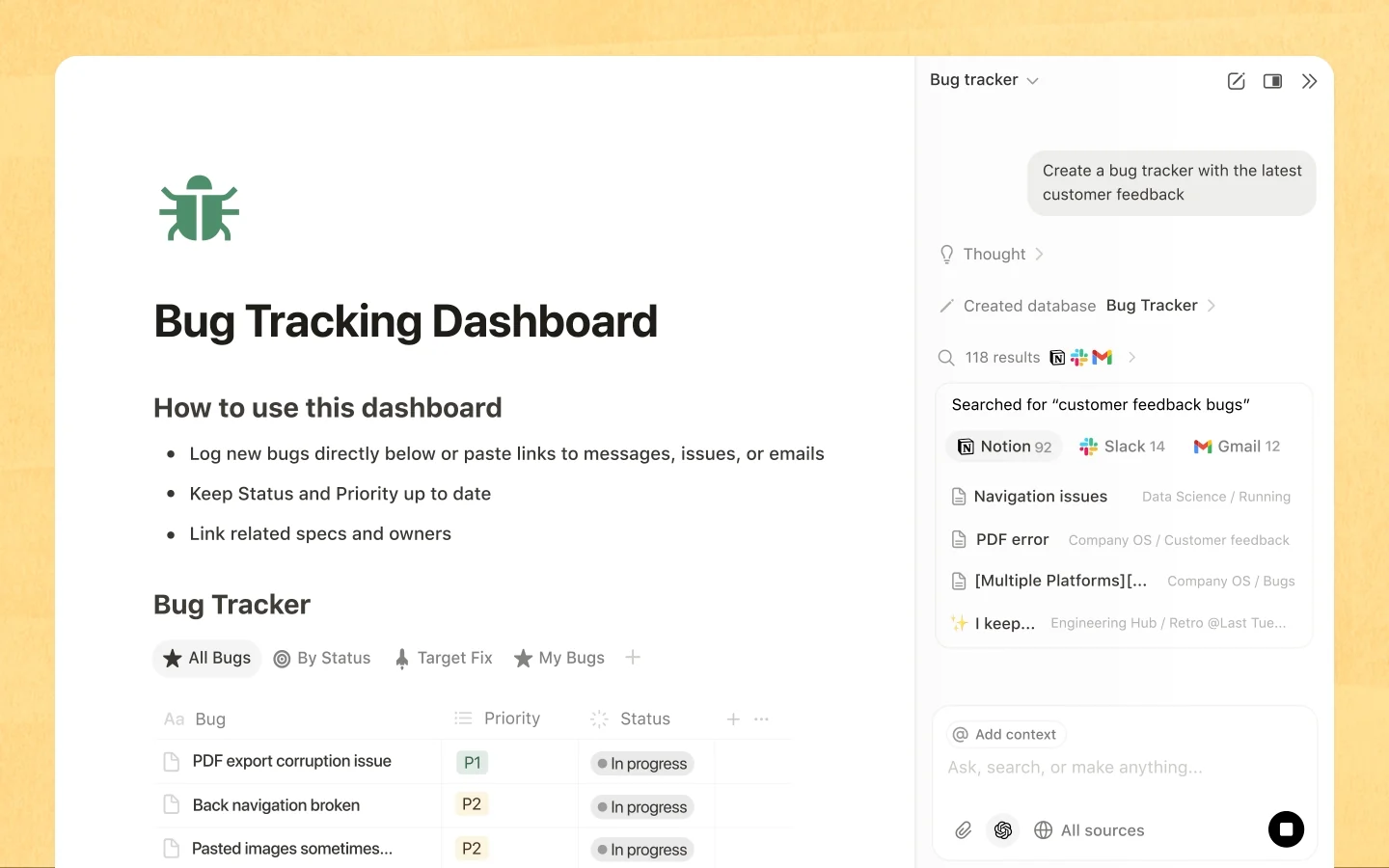
- Notion Agent
Before a Custom Agent writes to an outside tool, Notion shows exactly what action the agent will take and asks for confirmation. Confirmation is the default for writes.
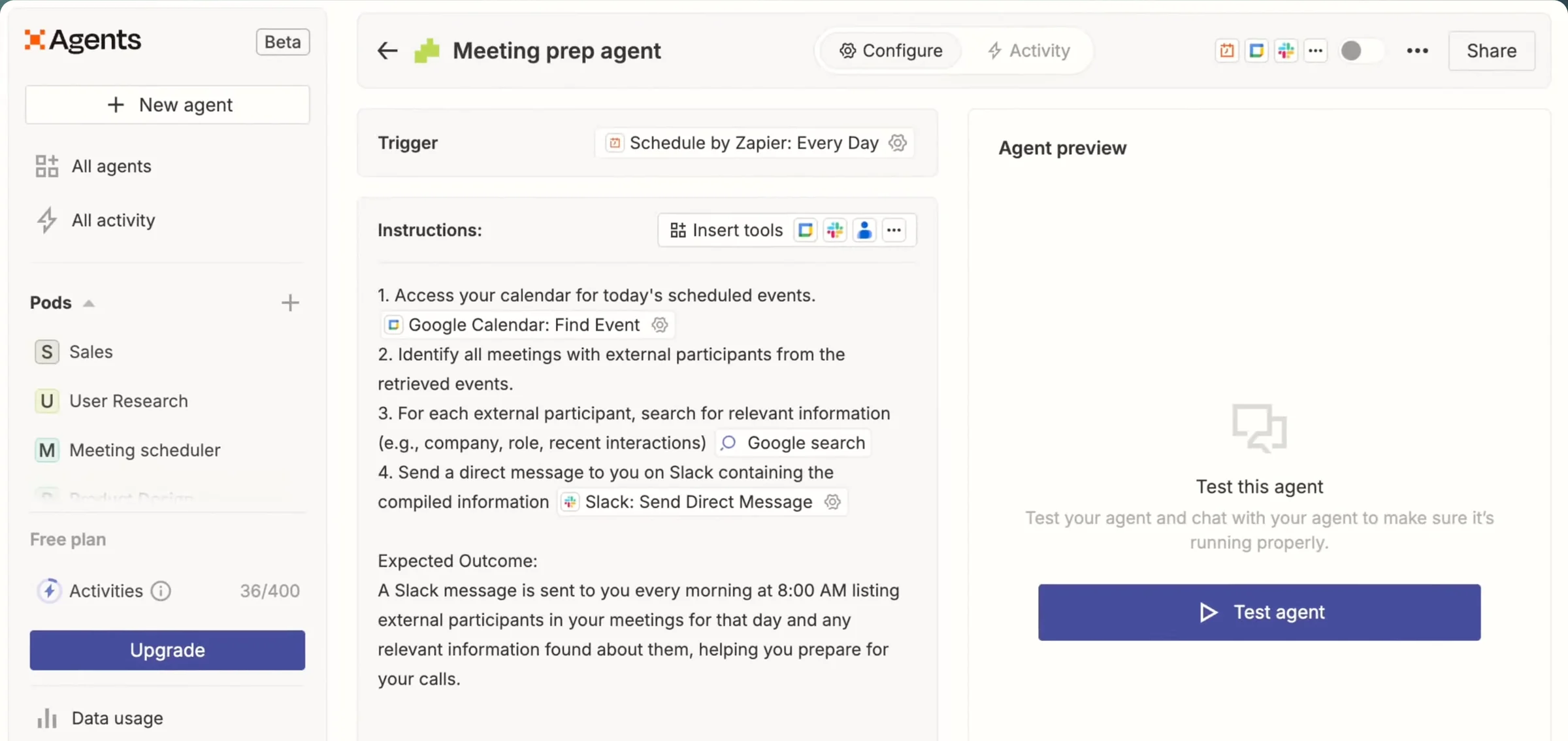
MCP connections for Custom Agents - Zapier Agents & AI by Zapier
When approval is switched on for a tool, AI by Zapier pauses before the tool runs, whatever the prompt says, and shows the full field values.
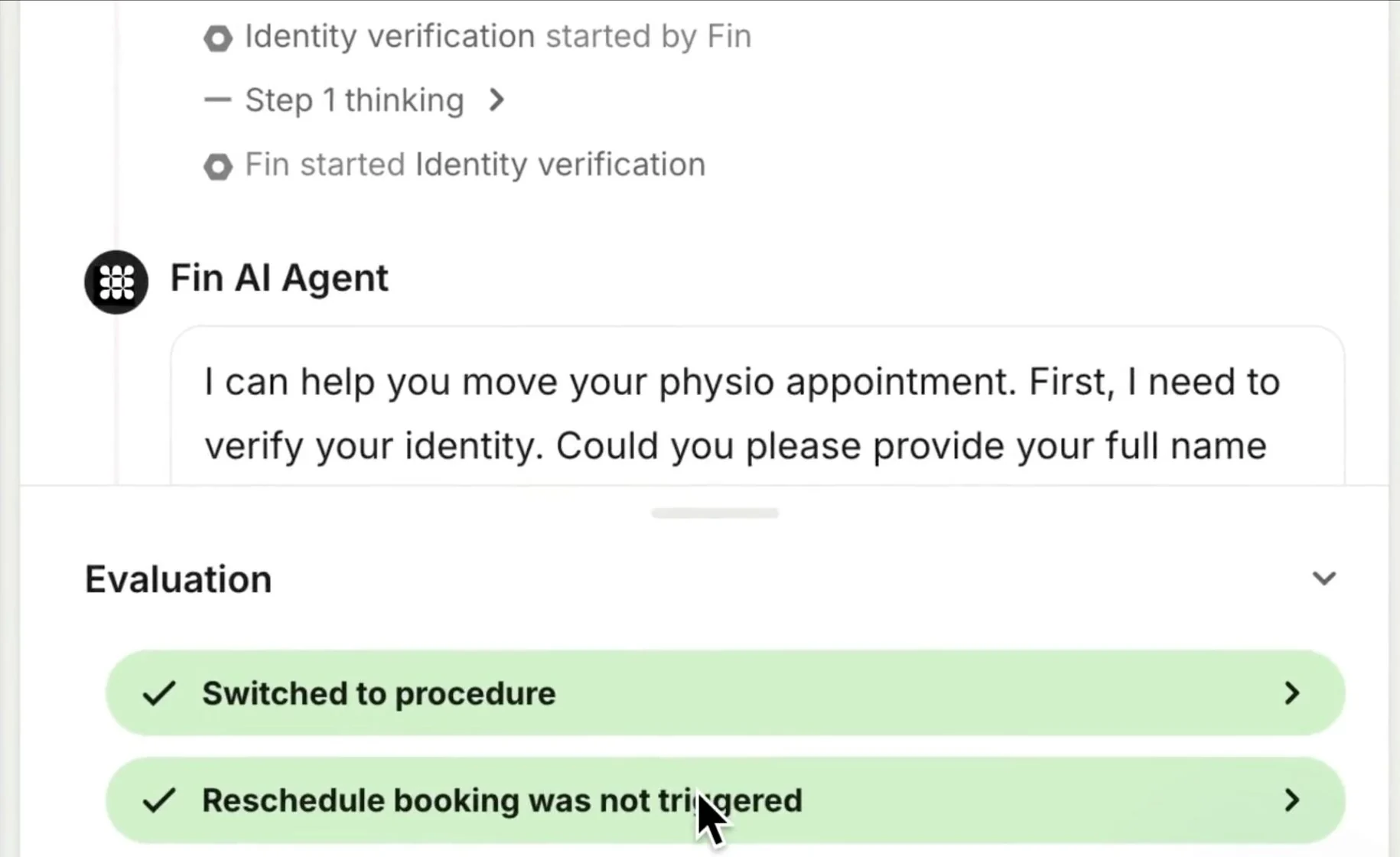
Add tools to your AI by Zapier step - Intercom Fin
A Fin Procedure can wait for a teammate’s decision, and the builder writes an explicit branch for the approved result. Only that branch acts.
Human-in-the-loop approvals for Fin Procedures - Shopify Sidekick
When Sidekick fills in a form, each field Sidekick generated is highlighted in purple. In a recorded demo, “15% off this weekend” became a discount whose end date ran into Monday: exactly what the review has to catch.
Getting help and guidance from Sidekick





Sources checked September 28, 2026.
Checklist#
Yes-or-no checks for a design review.
- The button names the outcome, like “Move 24 due dates,” not “Continue.”
- The person can open the exact items and the before and after values.
- Costs, outside recipients, and steps that can’t be undone appear before the button, not after.
- The approval is tied to this proposal version, these items, and the account that will act.
- A bulk change shows what’s included, what’s excluded, and what happens if some items fail.
- The product says when an approval expires or needs asking again.
Try it on your product
Try to break the promise
In a test workspace, pick one approval in your product and run six tests. Change a selected record after approval but before the run. Revoke a permission before the run. Disconnect after some records finish. Submit the same approval twice. Cancel while one change is in flight. Try recovery after someone else edits the record. For each test, write down what the screen promised and what actually happened.
Deep dive#
An approval should be tied to one exact proposal: the items, the changes, and the account that acts. The product also has to decide what happens when the world changes after the review.
The product picks where the agent shows up (a floating button, a side drawer, inline in the page, or a separate review page) based on what the person must look at to decide.